There are times when you want to give certain profiles access to a flow. As an example, only Sales Team can escalate cases. Or maybe you are looking into limiting certain flow functionality to some profiles.
I came up with a simple way to handle this use case. But before jumping into solution let me take a second to walk you through what I typically see in existing implementations.
Common Flow Profile Access Implementation
Let’s say you have a screen flow. To validate access to a profile you’d have the following list of elements:

If we look at ‘Access Validation’ decision element, it contains just a basic profile evaluation:
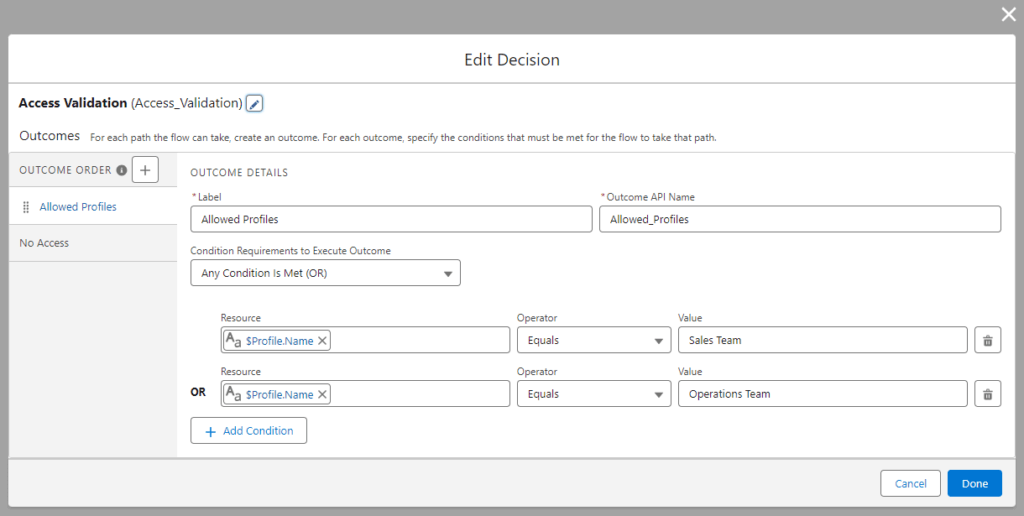
If logged in user profile EQUALS to ‘Sales Team’ OR ‘Operations Team’ then go ahead with a next step.
The problem with this approach is in hardcoding profile names.
First potential risk: let’s say one day you’ll need to adjust the list of allowed profiles. This means you have to go in and adjust this decision element and re-deploy.
The second potential risk can be if you decide to change the profile name. Same as first one. You have to go in, make adjustments and re-deploy. I’d even add more to it. Realistically it is unlikely that someone will go in, and proactively update profile names. If you have a config person, who is not having access/experience with VS code/metadata – it’d be hard to find all places where profile names are hard coded.
To be fair, you can put profile names in labels. This will simplify the mitigation process for a second use case. If you didn’t want to use names, then you’d have to use Profile Ids. But you don’t want to hardcode IDs in labels. For profile Ids you’re likely have to use ‘Get Records’ which then turn into extra elements.
Flow Access Through Custom Settings
The concept of custom setting is very appealing because it allows you to set certain field values as org defaults. But you are also able to set those fields on by profile basis.
Let’s create a ‘Custom Setting’ and call it ‘FLOW Access Settings’

To determine if a certain flow should validate profile access we can use checkbox field. For example, let’s pretend we have a flow that is called: ‘View List of Expired Contracts’. We want only ‘Sales Team’ and ‘Operations Team’ to view the list of expired contracts.
In our custom setting let’s create a custom checkbox field & for the label we can use the flow name ‘View List of Expired Contracts’.

When you go to ‘Manage’ you’ll notice that org defaults are blank. Therefore at this time, this checkbox value is deselected for everyone.
The concept of the custom setting approach is so that no one has access to a flow functionality (org default) unless you explicitly grant it to a profile.
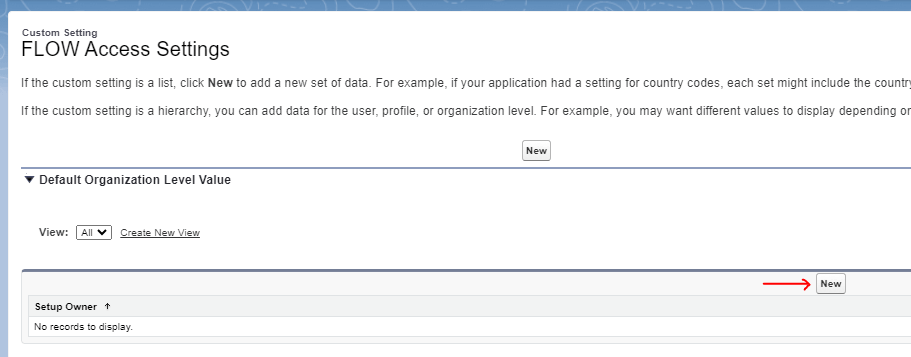
Go ahead and click ‘New’ button below:
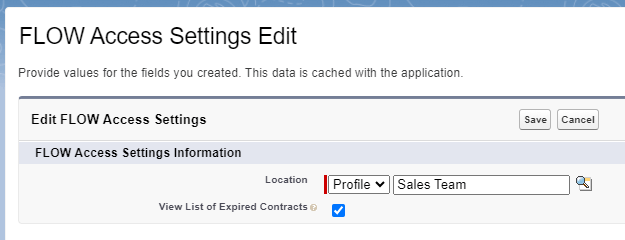
And then all that is left is to pick desired profile and set ‘View List of Expired Contracts’ checkbox to ‘true’.
I’ve added ‘Operations Team’ profile as well. Also adjusted list view to display the value of the checkbox for each profile. Here is how it look on my end:
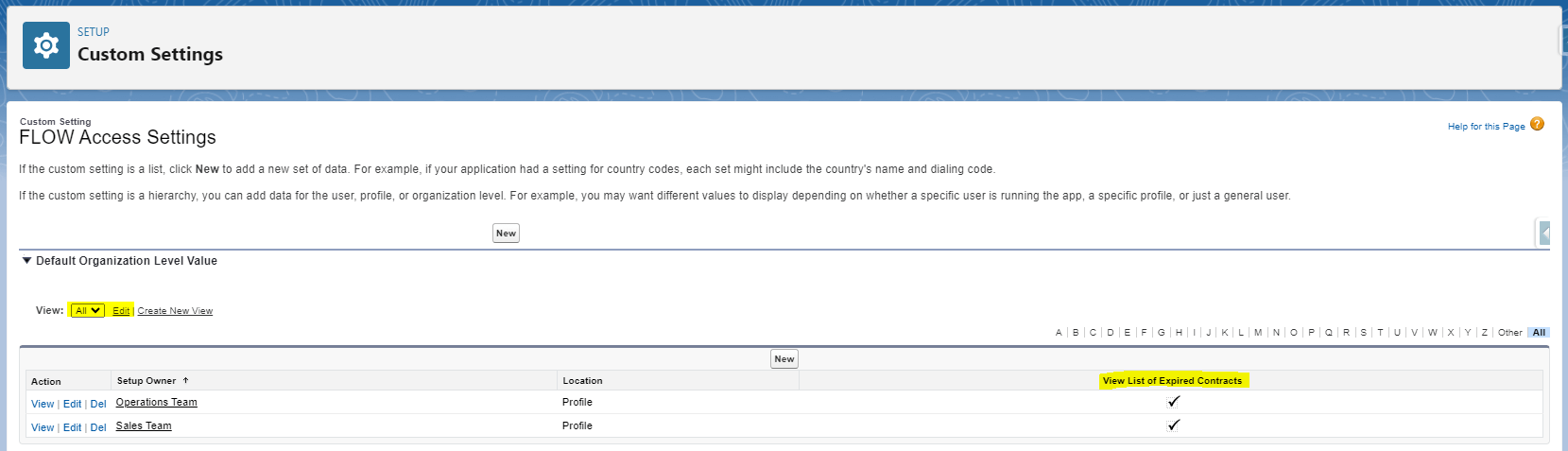
Now let’s go back to our flow and update decision element. It’s important to know that custom settings are always cached and available in flows without any kind of get elements. Also, the value that you are getting from custom setting is based on profile entry in those settings. If there is no entry for a given profile, it will fall back to org defaults.
You can access custom setting field values by using $Setup menu item.
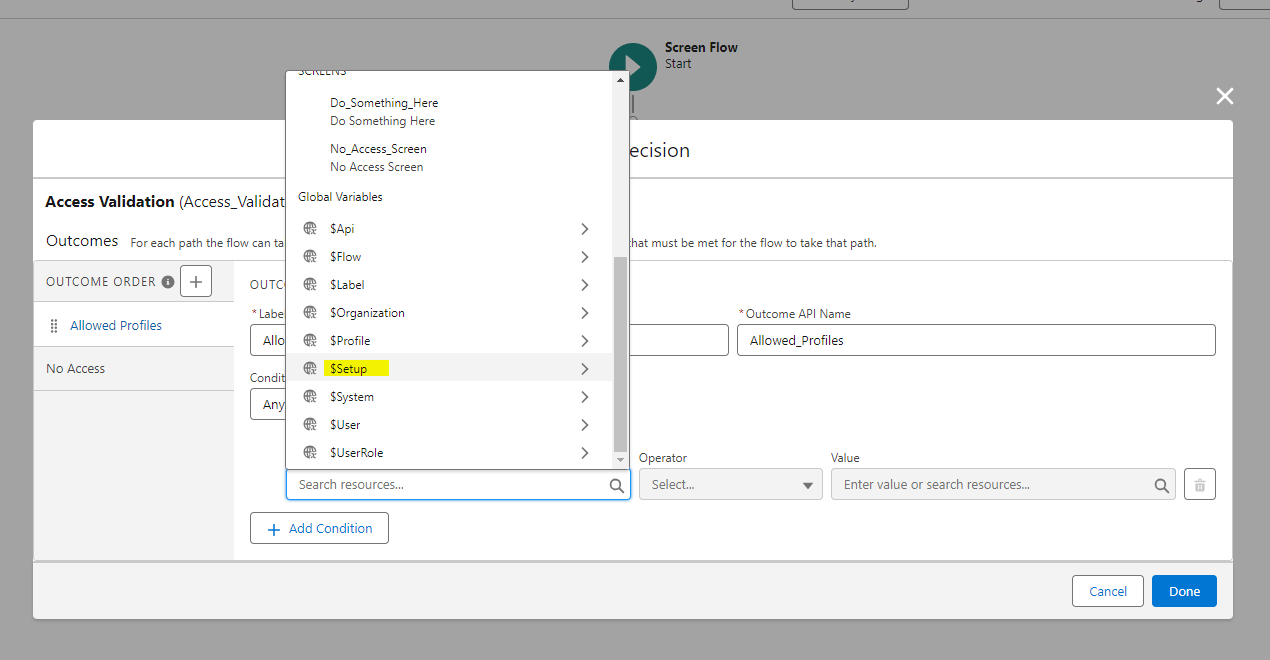
So now, we just simply add a condition where we evaluate if this checkbox will be set to true for a logged in user:
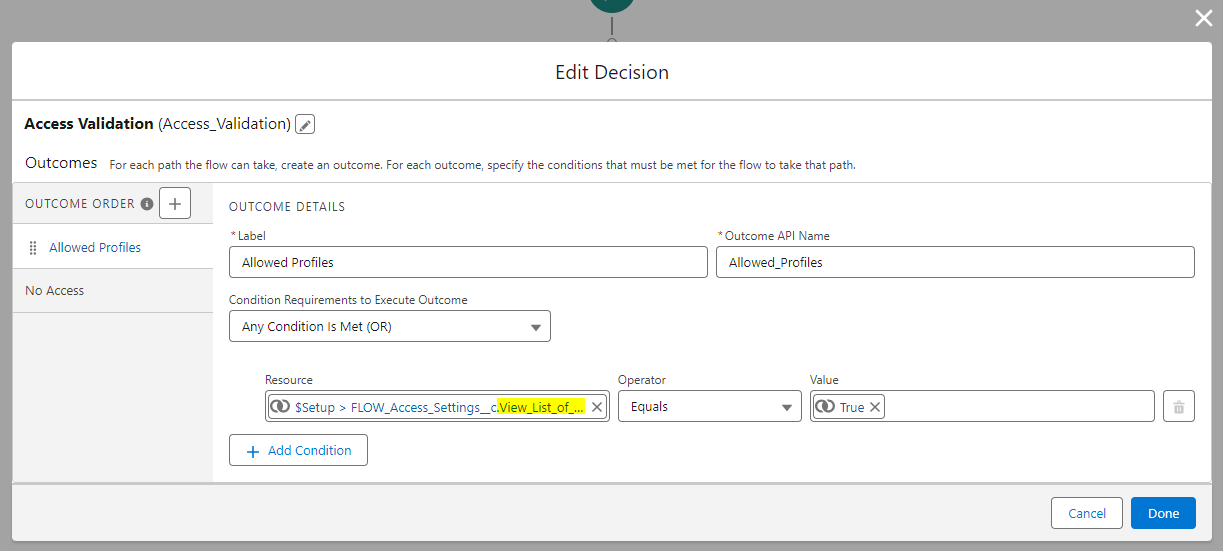
And that’s it. You no longer need to re-deploy this flow if you wanted to adjust the list of allowed profiles. No need to store profile names in labels. You can control flow access by profile all in one place.
This is what your custom setting may look like as you add your other flows that may require access validation.
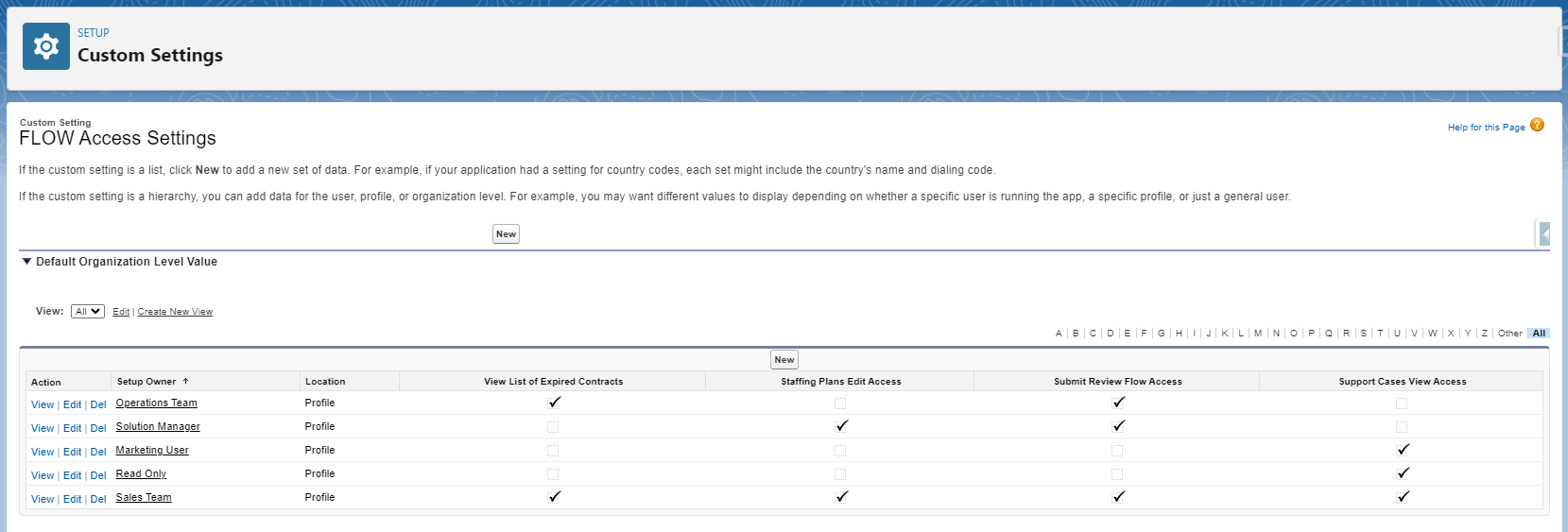
As you can see, it looks nice & organized. It is very easy to maintain and pretty robust.
As a side note, custom settings can be applied to both: profiles and individual users. This means, if you wanted to grant certain users some exclusive rights, you could use this framework as well. If there are one or two users then it’s fine. But if there’s more, then I’d suggest to look into something else rather than custom setting approach.